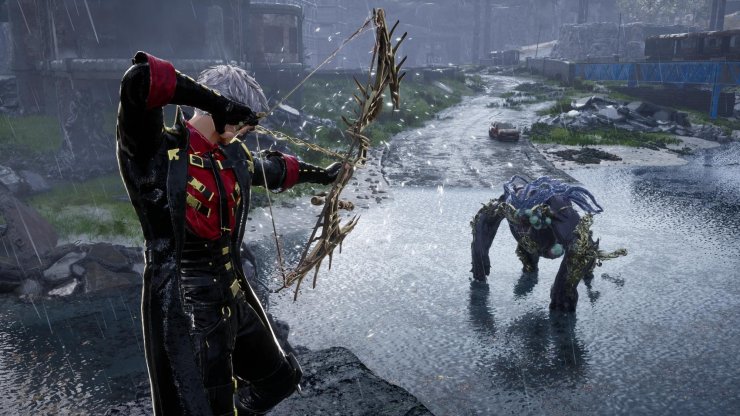
Code Vein II launched on January 29, 2026, for PC via Steam, bringing back the anime-inspired soulslike action with Unreal Engine 5 visuals and intense combat. However, early player feedback highlights performance struggles like stuttering, low FPS drops, and choppy cutscenes, even on high-end hardware. These tweaks will help stabilize your experience right from the start. Follow this guide step by step.
Step 1: Confirm Your PC Meets the Requirements
Before launching, check if your rig can handle the game. Code Vein II is GPU-intensive with high VRAM demands (aim for 8GB+ for smooth play) and requires Windows 11.
| Component | Minimum (1080p Low @ 30 FPS) | Recommended (1080p High @ 60 FPS) |
|---|---|---|
| OS | Windows 11 (64-bit) | Windows 11 (64-bit) |
| CPU | Intel Core i5-9600K / AMD Ryzen 5 3600 | Intel Core i7-12700KF / AMD Ryzen 7 7800X3D |
| RAM | 16 GB | 16 GB |
| GPU | GTX 1660 Super / RX 5700 / Arc B570 | RTX 3080 / RX 6800 |
| Storage | 70 GB (SSD recommended) | 70 GB (SSD recommended) |
| DirectX | Version 12 | Version 12 |
Use tools like Can You RUN It or Steam's built-in checker.
Step 2: Update Drivers and Verify Game Files
- Download the latest NVIDIA, AMD, or Intel drivers. Outdated ones cause crashes and stutters.
- In Steam: Right-click Code Vein II → Properties → Installed Files → Verify Integrity.
- Restart your PC after updates to fix DirectX 12 errors.
- Ensure Windows 11 is fully updated.
Step 3: In-Game Graphics Settings for Optimal Performance
Launch the game and head to Options → Graphics. Recent patches (1.0.1/1.0.2) added DLSS and FSR support, crucial for boosting FPS without losing quality.
Use these presets based on your hardware. Enable DLSS Quality (NVIDIA RTX) or FSR Quality (AMD/others) for 1080p/1440p. Set Resolution Scale to 100% and Window Mode to Borderless Windowed for alt-tabbing.
| Setting | Low-End (GTX 1660+) | Mid-Range (RTX 3060+) | High-End (RTX 4070+) |
|---|---|---|---|
| Post-Processing | Low | High | Ultra |
| Anti-Aliasing | Medium | High | Ultra |
| Shadows | Low | Medium | High |
| Textures | Medium | High | Ultra |
| Effects | Low | Medium | Ultra |
| Material | Medium | Medium | Ultra |
| Depth of Field | Off/Low | Low | Ultra |
| Global Illumination | High | High | Ultra |
| Character Model | Medium | High | Ultra |
| Upscaling | FSR Performance | DLSS/FSR Balanced | DLSS Quality |
| VSync | Off | Off (use RTSS cap) | Off |
Step 4: Fix Stuttering and Cutscene Issues
- Stuttering: Install the "Ultimate Engine Tweaks" mod from Nexus Mods. It edits Engine.ini for lower latency, no stutters, and better clarity. Path: %localappdata%\CodeVein2\Saved\Config\Windows\Engine.ini. Set read-only after.
- Cutscenes Locked at 30 FPS: Download the injectable ASI fix from PCGamingWiki forums.
- Close background apps (Discord overlay, etc.) and enable Resizable BAR in BIOS if supported.
Step 5: Input and Other Tweaks
- Prefer controller for soulslike precision; keyboard/mouse works but patches fixed some input bugs.
- For FOV: Use CV2CameraTweaks mod on Nexus.
- Monitor with MSI Afterburner: Aim for stable 60 FPS; game uses up to 9GB VRAM at 4K.









Comments