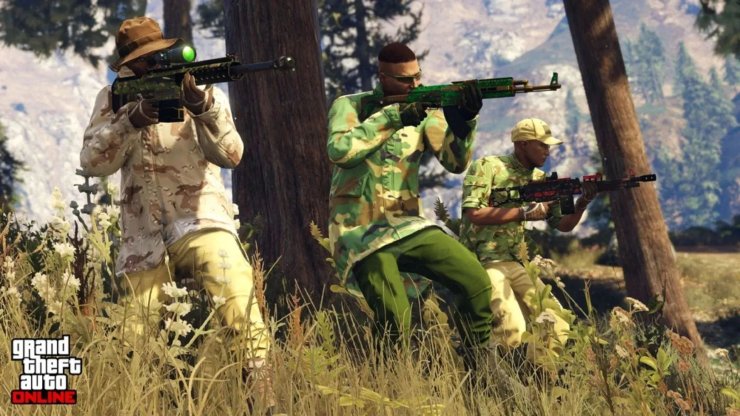
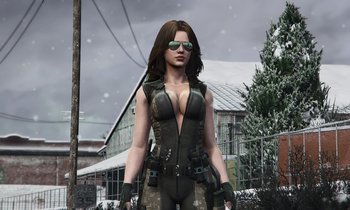
In GTA Online, tactical pouches - also known as utility or ammo pouches - are popular accessories that give your character a professional, military-style appearance. These MOLLE-style pouches originate from specific outfits like the Grassland Armor in the Cayo Perico Heist collection. Normally locked to bulky vests, players use a reliable glitch method to equip them on nearly any custom outfit, such as shirts, sweaters, or even shirtless looks.
This guide details a working method as of February 2026. It requires a public session and precise timing but allows solo execution. Note that glitches can be patched by Rockstar, so follow steps carefully.
Prerequisites
- A public GTA Online session
- Access to any clothing store (e.g., Ponsonbys or Binco)
- The telescope on the Vespucci Beach pier
- Ammu-Nation with a clothing section
- The Rockstar Created Mission "A Titan of a Job" (found in Online > Jobs > Play Job > Rockstar Created > Missions)
Step-by-Step Guide
1. Equip the Grassland Armor
- Enter a clothing store in a public session.
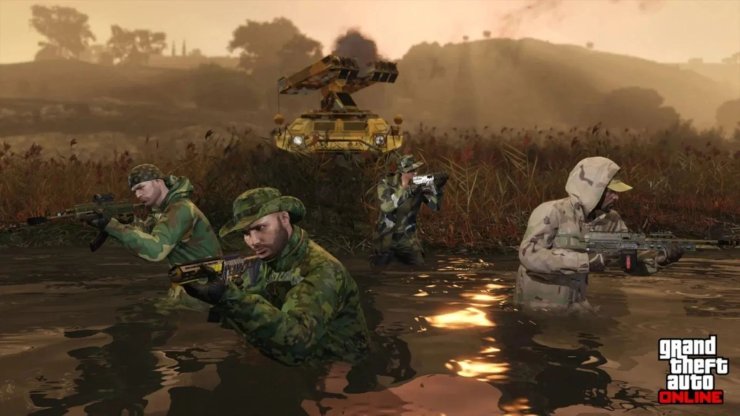
- Approach the counter and navigate to Outfits > Cayo Perico Heist (slot 51).
- Select a Grassland Armor variant. The Naturalist version offers the best pouch layout.
- Step away from the counter.
- Remove any hats, glasses, or headwear to prevent transfer issues.
2. Save the Pouch Outfit
- Return to the counter.
- Choose Edit Saved Outfits.
- Save the current outfit (with pouches) to Slot 1 or Slot 20. Remember your slot number.
3. Equip a Heist Coverall with Toxic Mask
- Scroll to Heist Coveralls (slot 13).
- Pick an outfit from slots 9-12 that includes the Toxic Mask.
- Exit the store.
4. Perform the Telescope Glitch for Mask Transfer
- Head to the telescope on Vespucci Beach pier.
- Jog past it and quickly tap right on the D-pad (console) to freeze your character.
- Open the Interaction Menu > Style.
- Load your saved pouch outfit from Step 2.
- Close all menus and walk away.
- The Toxic Mask should now be on the pouch outfit.
5. Save the Updated Outfit
- Go to Ammu-Nation and enter the clothing area.
- Select Edit Saved Outfits.
- Overwrite and save in the same slot.
6. Remove the Vest in "A Titan of a Job"
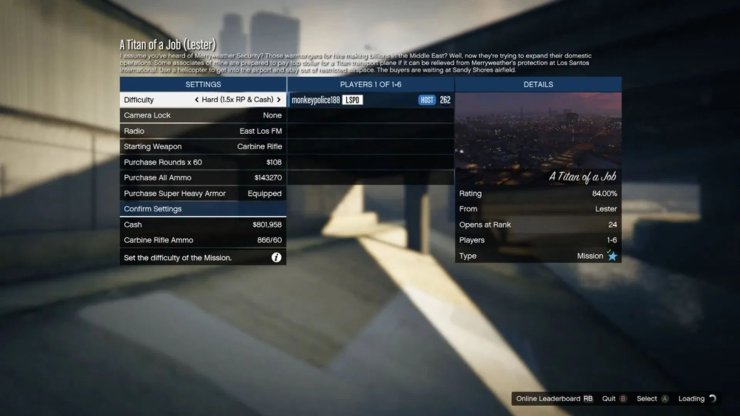
- Open the pause menu: Online > Jobs > Play Job > Rockstar Created > Missions.
- Start "A Titan of a Job".
- Once in the mission, the vest will vanish, leaving pouches.
- Open the clothing menu and go to Tops.
- Save the outfit again in your slot.
- Pull out your in-game phone.
- Quit the mission.
7. Finalize in Public Session
- Load back into the session.
- Pouches should appear without the vest.
- Visit a clothing store, go to Tops, and test compatibility (e.g., sweaters, tank tops, service shirts).
Compatible Clothing and Tips
- Works with: Most shirts, sweaters, tank tops, service shirts, and even shirtless in some cases.
- May not work: Turtlenecks or certain layered tops.
- Remove headgear before transfers to avoid glitches.
- Practice the telescope timing - it may take a few tries.
- Pouches stay on after restarts if saved properly.
- Combine with gun belts or other accessories for full tactical loadouts (check r/GTAoutfits for merges).
Troubleshooting
- Pouches disappear: Re-do mask transfer or vest removal step.
- Mask won't transfer: Ensure public session and no head items.
- Mission not found: Search "A Titan of a Job" in Jobs menu.
- If patched, check YouTube for solo workarounds (search "GTA Online pouches glitch 2026").








Comments